> For AI agents: the complete documentation index is available at /react-native-arrangement-view/llms.txt, the full documentation bundle is available at /react-native-arrangement-view/llms-full.txt.
# Tent posture
Stood up as a tent, with the inner display folded inwards, iPhone Duo keeps the app on the outer display, in landscape. iOS has no tent state. [`useHingeChange`](/react-native-arrangement-view/api/use-hinge-change.md) reports the angle the hinge is open at, around 81°, but its status lags behind the angle: a tent reached from closed reads `closed`, and one reached from open reads `partiallyOpen`. So don't look for a status. What makes a tent is the hinge being open while the app is on the outer display, which in landscape is a window with a compact height:
```tsx
import { useWindowDimensions } from 'react-native';
import { useHingeChange } from 'react-native-arrangement-view';
function Primary() {
const hinge = useHingeChange();
const { height } = useWindowDimensions();
// Open past 30° (0.5 rad), yet in a window under 480 pt tall, a compact
// height: the outer display, in landscape. The inner one is never that short.
const tent = (hinge.angle ?? 0) > 0.5 && height < 480;
return tent ? : ;
}
```
This follows Apple's guidance for iPhone Duo: there is no system pose, so infer one from the hinge angle, the orientation and the size class together, and keep the hinge for interactions and effects while the arrangement does the layout. Both thresholds are heuristics. Apple does not guarantee the precision or update rate of `angle`, so check the behavior on hardware.
Android has no tent posture either. A Pixel foldable hands over to its inner display as soon as it is open a little way, about 30° on the emulator, and from there WindowManager reports a half-open fold, which `ArrangementView` splits across. So the check above is true on Android only for a moment, with the cover display outwards.
## Hiding headers and indicators
Usually in Tent posture, we want a fullscreen without distractions. Use the tent state to hide the navigation header, auto-hide the home indicator, and remove safe areas.
The header and the safe area belong to the screen, which is outside the panes. Mount a [`HingeObserver`](/react-native-arrangement-view/api/hinge-observer.md) above your navigator, and the screen can read the hinge itself. [`useHingeSelector`](/react-native-arrangement-view/api/use-hinge-selector.md) keeps it from rendering again at every angle on the way:
```tsx
function Screen() {
const open = useHingeSelector((hinge) => (hinge.angle ?? 0) > 0.5);
const { height } = useWindowDimensions();
const tent = open && height < 480;
const navigation = useNavigation();
useLayoutEffect(() => {
navigation.setOptions({ headerShown: !tent, autoHideHomeIndicator: tent });
}, [navigation, tent]);
return (
{tent ? : }
);
}
```
## Example
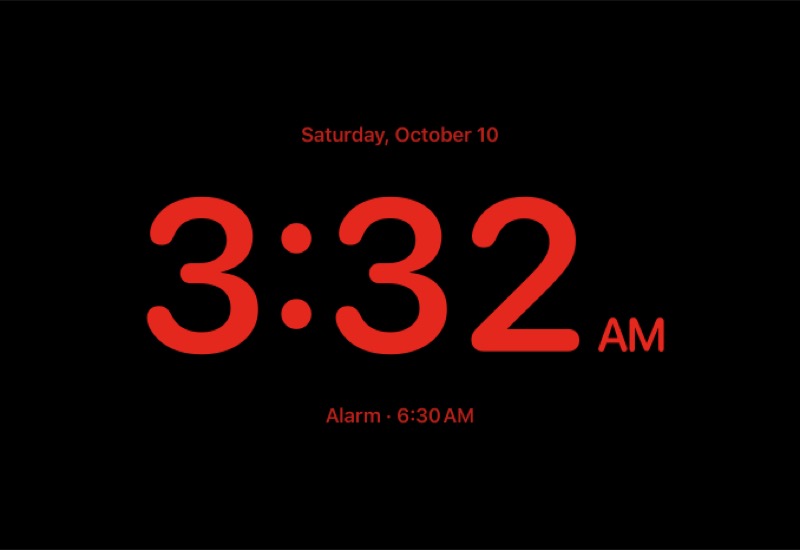
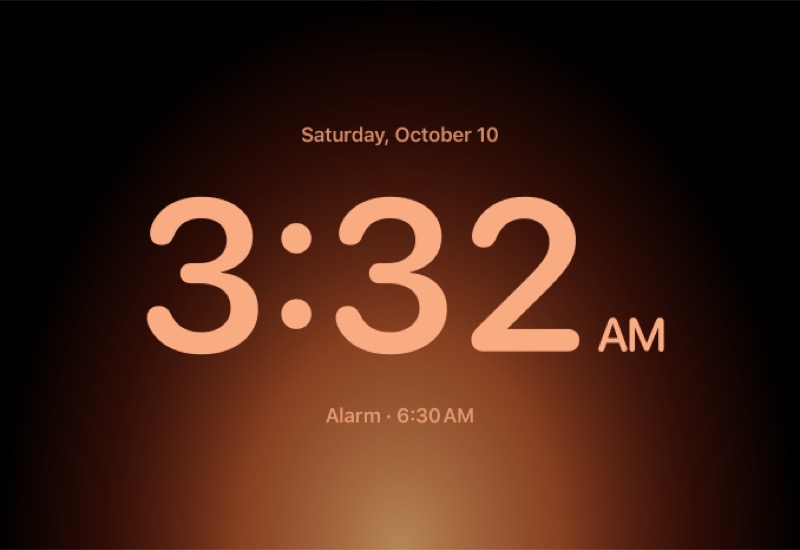
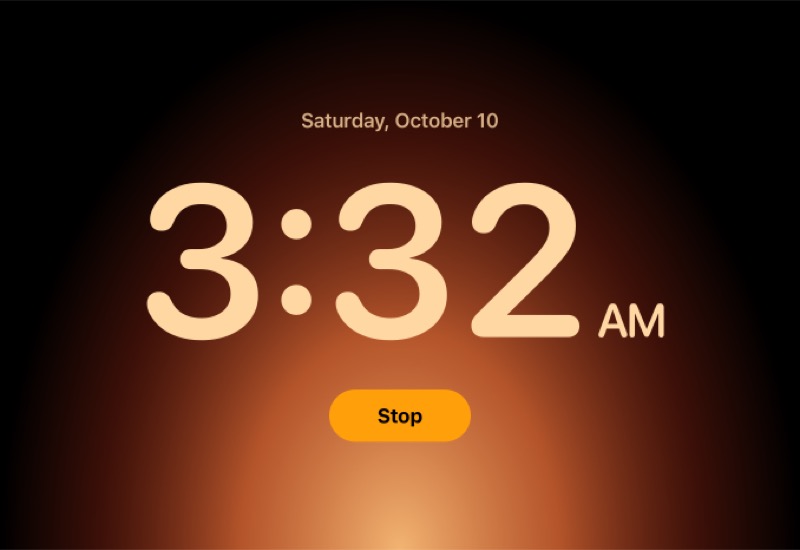
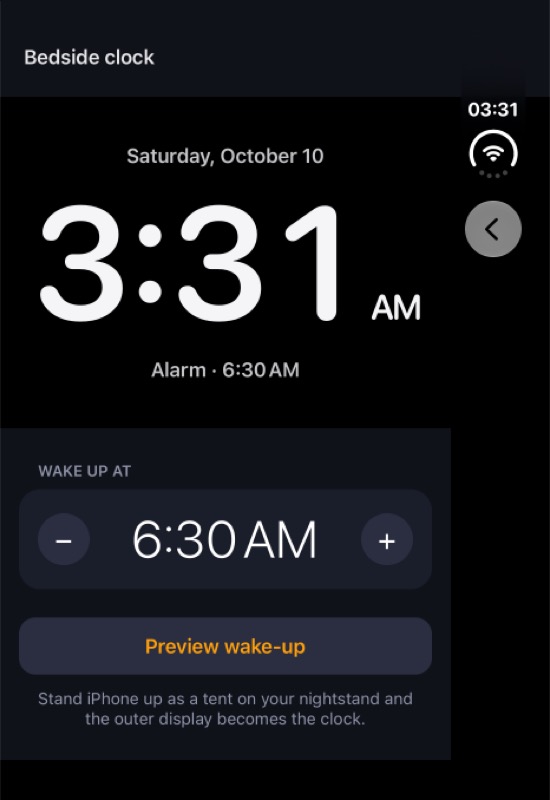
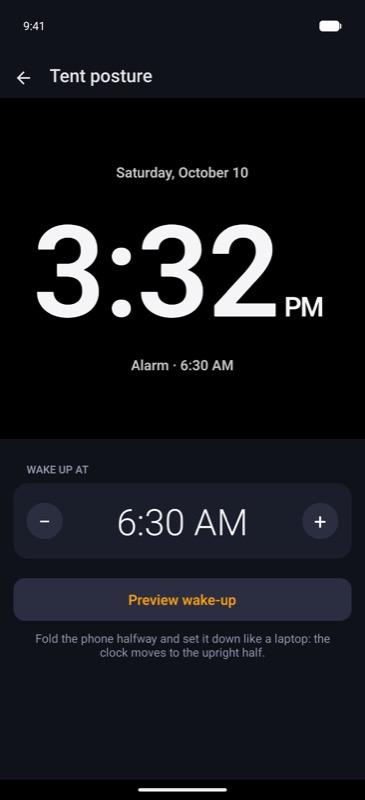
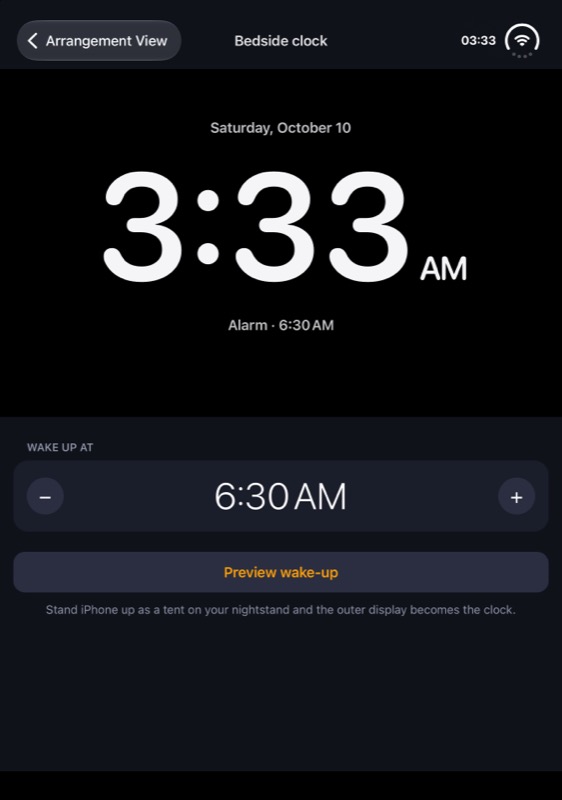
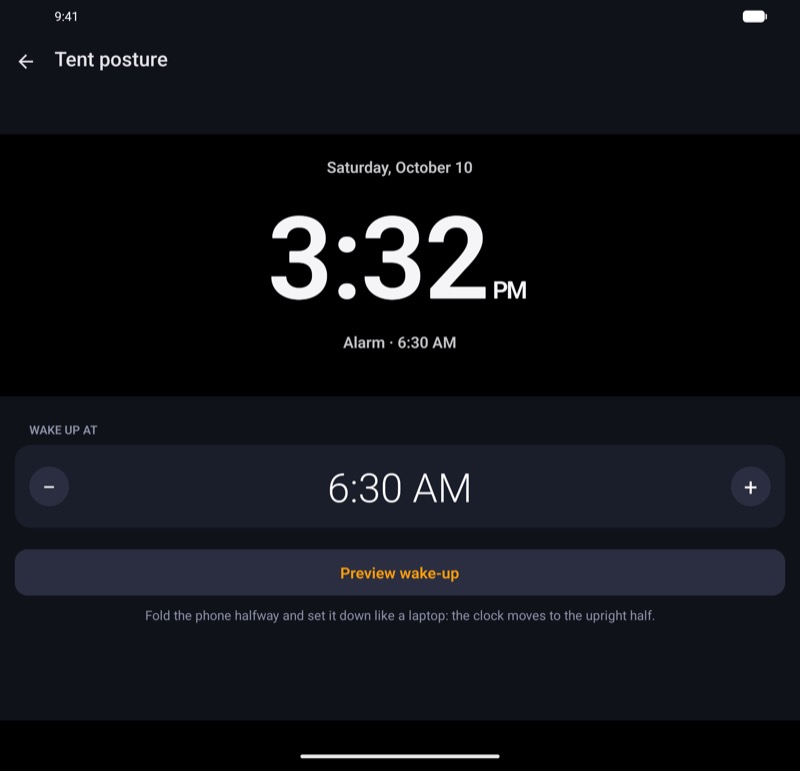
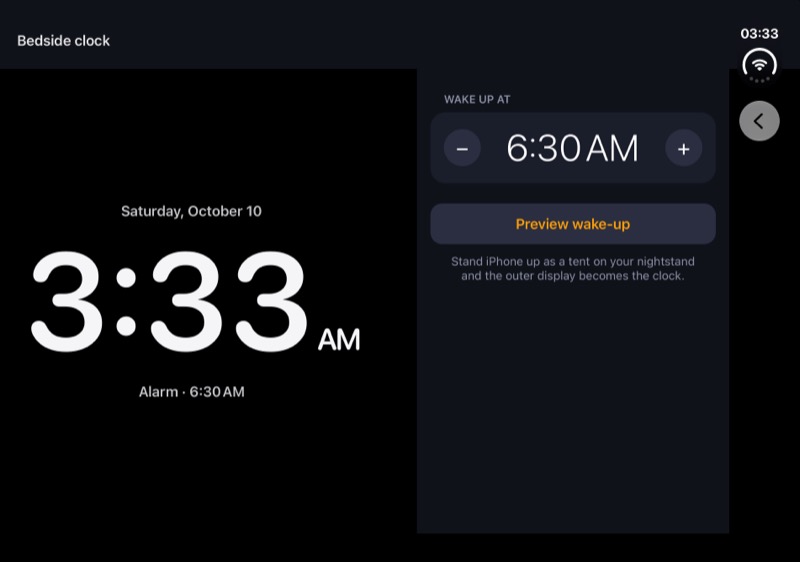
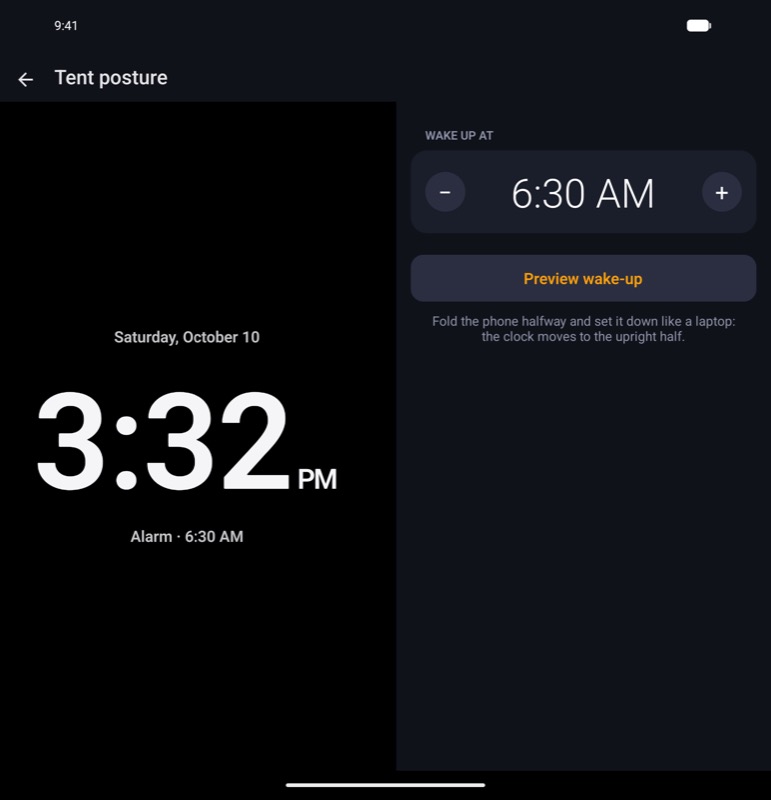
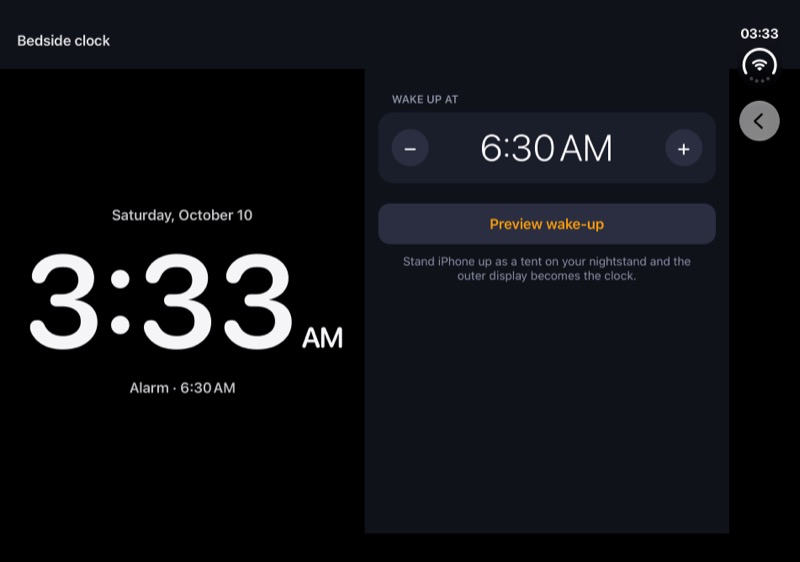
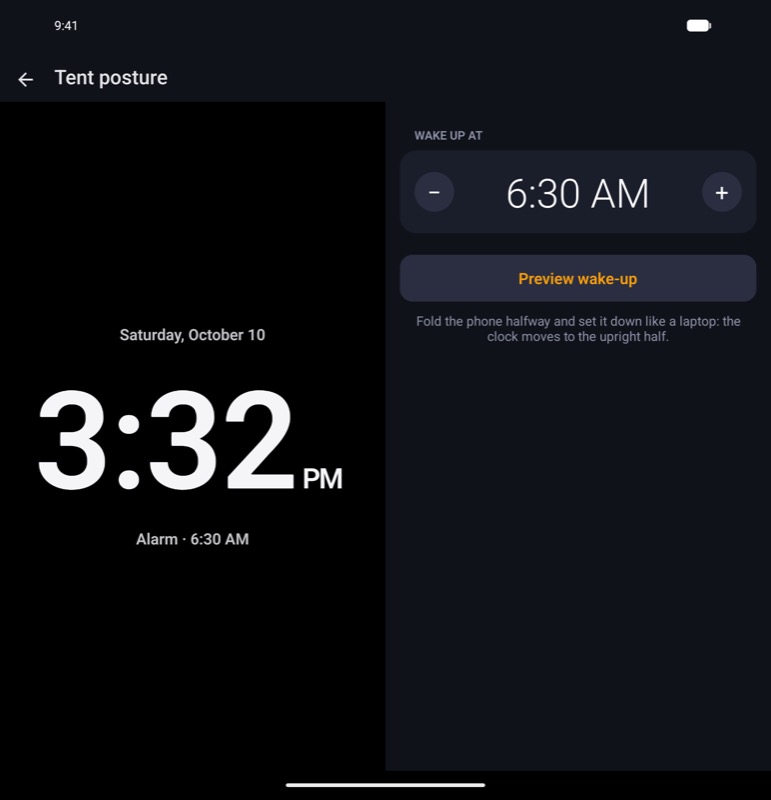
The [example app](https://github.com/thiagobrez/react-native-arrangement-view/tree/main/apps/example-expo/src/examples/tent-posture) shows a bedside clock after the one Apple showed with iPhone Duo. The clock is the primary pane, so it's what shows where only one pane fits, and the alarm's settings are the secondary pane. In a tent, the clock fills the outer display in red, like StandBy at night. "Preview wake-up" plays the glow that comes before an alarm.
| Posture | Layout |
| ------------------- | ------------------------------------------------------------------------------------------------------------------------- |
| Closed | The clock, with the settings stacked below it. A shorter cover display, under 900 dp tall on Android, fits the clock only |
| Half-open, tabletop | The clock on the upright half, and the settings on the half on the table |
| Half-open, book | The clock on the leading half, and the settings on the trailing half |
| Open flat | The clock and the settings side by side |
| Tent | The clock alone, in red, on the outer display. It warms as the glow rises, until the alarm rings |
Tent
iOS
Tent, the glow rising
iOS
Tent, the alarm ringing
iOS
Closed
iOS
Android
Tabletop
iOS
Android
Book
iOS
Android
Open
iOS
Android