For AI agents: the complete documentation index is available at /react-native-arrangement-view/v0.5/llms.txt, the full documentation bundle is available at /react-native-arrangement-view/v0.5/llms-full.txt, and this page is available as Markdown at /react-native-arrangement-view/v0.5/examples/split-view.md.

Split view iOS only

Example integration with React Native Screens' Experimental Split View. ArrangementView is rendered in the Split main panel, and arranges the panes according to the available space, reacting to the sidebar expanded/collapsed state. The full example is in the example app.

Arrangement

The details column holds an ArrangementView with the trail's overview as the primary pane and its notes as the secondary pane:

import { SafeAreaView } from 'react-native-safe-area-context';
import { ArrangementView } from 'react-native-arrangement-view';

function Detail({ trail }: { trail: Trail }) {
  return (
    <SafeAreaView
      style={{ flex: 1 }}
      edges={['top', 'left', 'right', 'bottom']}
    >
      <ArrangementView style={{ flex: 1 }} arrangement="split">
        <ArrangementView.Primary>
          <Overview trail={trail} />
        </ArrangementView.Primary>
        <ArrangementView.Secondary>
          <Notes trail={trail} />
        </ArrangementView.Secondary>
      </ArrangementView>
    </SafeAreaView>
  );
}

The ArrangementView arranges the panes within its column, not the window. Whether it splits them depends on where the column sits relative to the hinge:

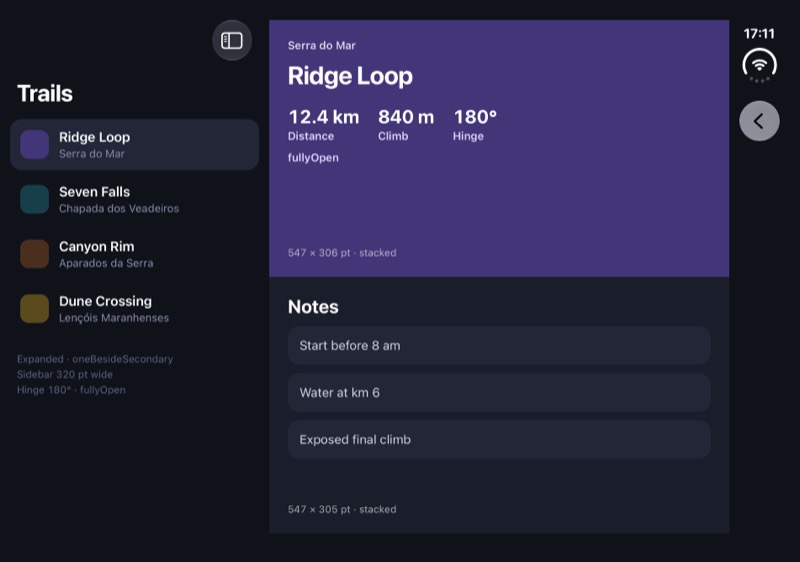
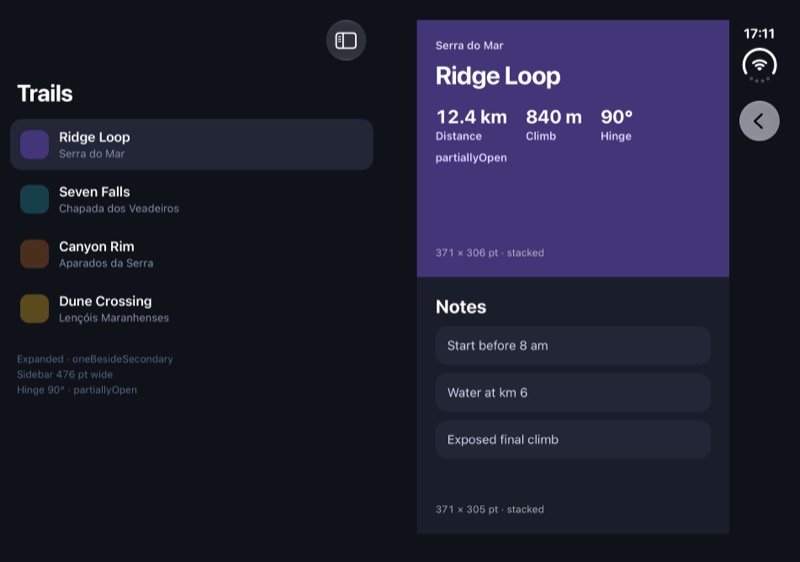
  • Half-open, sidebar shown: on iOS 27, UISplitViewController is fold-aware. It widens the sidebar so the edge between the columns lies on the hinge. No hinge runs through the details column, so the panes stay stacked.
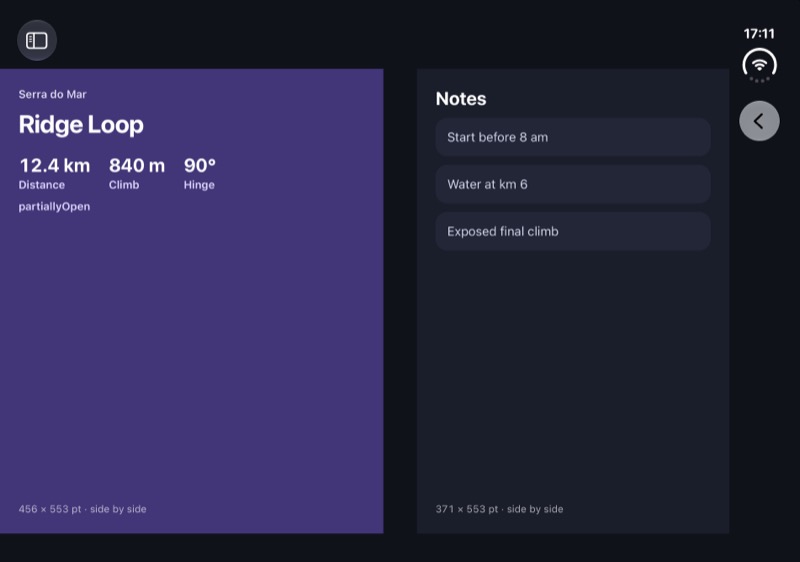
  • Half-open, sidebar hidden: the details column spans the hinge, and the panes split on either side of it, as they do full screen.

Hiding the sidebar when half-open

The example hides the sidebar while the device is half-open, so the details split around the hinge. The split's host and its sidebar are outside the details' ArrangementView, so they read the hinge from a HingeObserver mounted above the app's navigator:

import { useHingeSelector } from 'react-native-arrangement-view';

const NEARLY_FLAT = (135 * Math.PI) / 180;

export function SplitViewExample() {
  const halfOpen = useHingeSelector(
    (hinge) =>
      hinge.status === 'partiallyOpen' && (hinge.angle ?? 0) < NEARLY_FLAT
  );

  return (
    <Split.Host
      preferredDisplayMode={halfOpen ? 'secondaryOnly' : 'oneBesideSecondary'}
      preferredSplitBehavior="tile"
    >
      {/* The sidebar and details columns */}
    </Split.Host>
  );
}

An unfolding device still reports partiallyOpen when its inner display lights up, just short of flat. Hiding the sidebar on the status alone shows the half-open layout for a moment before the flat one, so the example also checks that the angle is under 135°. The sidebar's button still shows it again while half-open.

Panes

Each pane shows how the panes are placed, using useArrangementLayout:

import {
  useArrangementLayout,
  type ArrangementLayout,
} from 'react-native-arrangement-view';

function describe(layout: ArrangementLayout | null) {
  if (!layout) return '…';
  if (!layout.secondaryVisible) return 'overview only';
  return layout.axis === 'horizontal' ? 'side by side' : 'stacked';
}

function Notes({ trail }: { trail: Trail }) {
  const layout = useArrangementLayout();
  return (
    <View style={{ flex: 1 }}>
      <NotesList notes={trail.notes} />
      <Text>{describe(layout)}</Text>
    </View>
  );
}

Hosting the split in a stack

Split.Host inside a stack screen needs a few adjustments, which apply to react-native-screens 4.26:

import {
  Split,
  type SplitHostCommands,
} from 'react-native-screens/experimental';

export function SplitViewExample() {
  const navigation = useNavigation();
  const split = useRef<SplitHostCommands>(null);
  const [collapsed, setCollapsed] = useState(false);
  const [detailVisible, setDetailVisible] = useState(false);

  const [pushed, setPushed] = useState(false);
  useEffect(
    () => navigation.addListener('transitionEnd', () => setPushed(true)),
    [navigation]
  );

  useEffect(() => {
    navigation.setOptions({ headerBackVisible: !(collapsed && detailVisible) });
  }, [navigation, collapsed, detailVisible]);

  if (!pushed) return <View style={{ flex: 1 }} />;

  return (
    <Split.Host
      key={collapsed ? 'collapsed' : 'expanded'}
      ref={split}
      preferredDisplayMode="oneBesideSecondary"
      preferredSplitBehavior="tile"
      topColumnForCollapsing="primary"
      onCollapse={() => {
        setCollapsed(true);
        setDetailVisible(false);
      }}
      onExpand={() => setCollapsed(false)}
    >
      <Split.Column>
        <Sidebar
          onSelect={(id) => {
            setSelectedId(id);
            split.current?.show('secondary');
          }}
        />
      </Split.Column>
      <Split.Column
        onWillAppear={() => setDetailVisible(true)}
        onWillDisappear={() => setDetailVisible(false)}
      >
        <Detail trail={trail} />
      </Split.Column>
    </Split.Host>
  );
}
  • Mount after the push: Split.Host creates its UISplitViewController once it is in a window, and ignores columns mounted before then. A pushed screen enters the window after React mounts it, so the example renders the split on the stack's transitionEnd.
  • Remount when it collapses or expands: after unfolding and folding again, the collapsed split shows the details column at its expanded size. Keying the host by collapsed starts a new split each time.

The example's screen uses a transparent stack header without a title, so the split fills the screen and the stack's back button stays available:

<Stack.Screen
  name="split-view"
  component={SplitViewExample}
  options={{ headerTransparent: true, headerTitle: '' }}
/>

Screenshots

PostureLayout
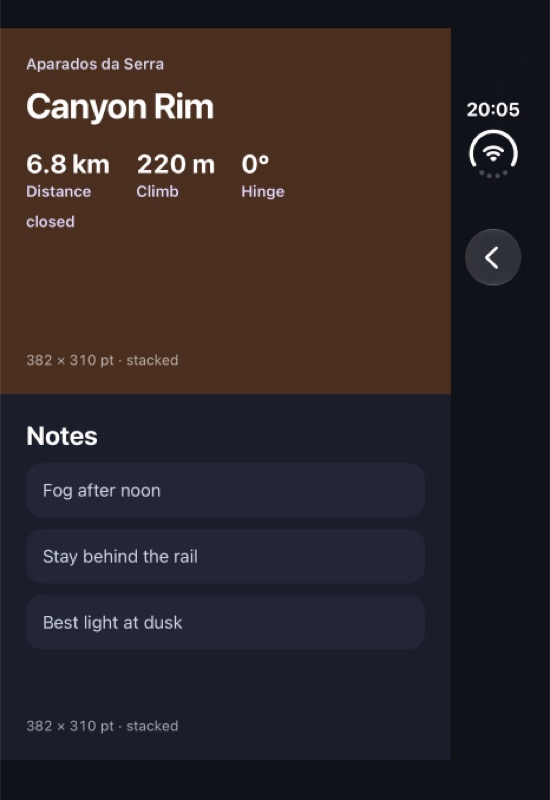
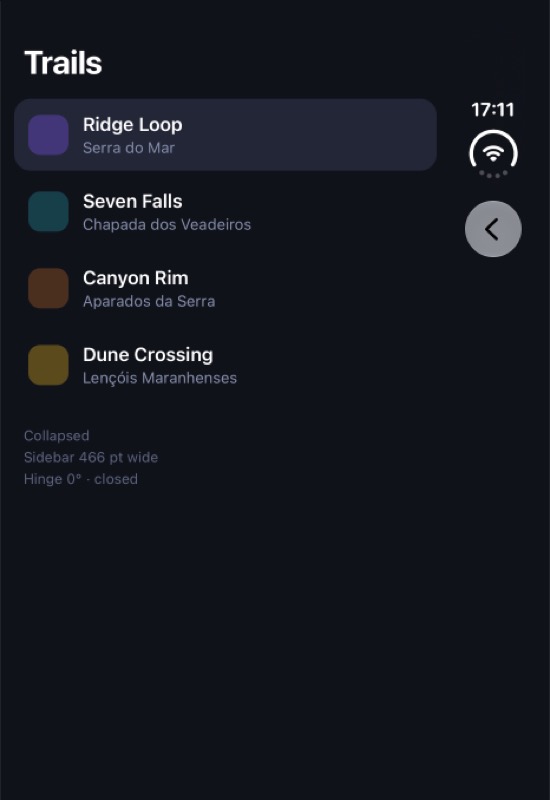
ClosedThe trails list. Picking a trail pushes its details, with the panes stacked
Open flatA 320 pt sidebar beside the details, with the panes stacked
Half-openThe sidebar hides. The details span the hinge, with the overview and the notes on either side of it
Half-open, sidebar shown againThe sidebar widens to end at the hinge. The details are on the other half, panes stacked
Closed
iOS, closediOS
Closed, trail details
iOS, closed, trail detailsiOS
Open flat
iOS, open flatiOS
Half-open
iOS, half-openiOS
Half-open, sidebar shown again
iOS, half-open, sidebar shown againiOS