ArrangementView
The container component where you render your primary and secondary panes. It arranges them side by side, stacked, or overlaid, depending on the platform, device, and orientation.
It also takes the View props, such as style and testID. Give the arrangement a bounded size, usually flex: 1. The platform determines whether a split is appropriate.
The component adds no safe-area padding. Place it within the safe area supplied by your screen/navigation container, or handle insets in your content.
To adapt a pane's content to what the arrangement shows, such as whether the secondary pane is on screen, use useArrangementLayout inside a pane, or onArrangementLayoutChange outside the panes.
Props
children
Exactly one ArrangementView.Primary and one ArrangementView.Secondary, in either order. See below for what goes in each.
arrangement
"split" | "overlay", default "split".
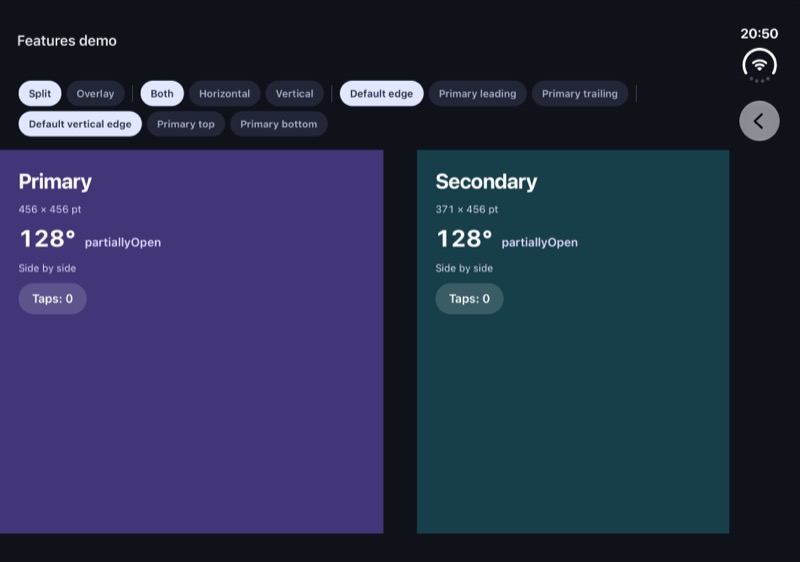
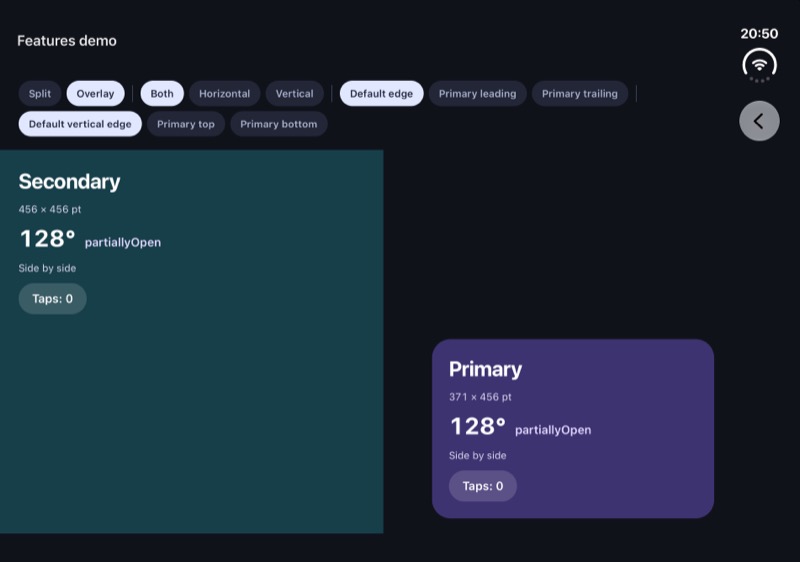
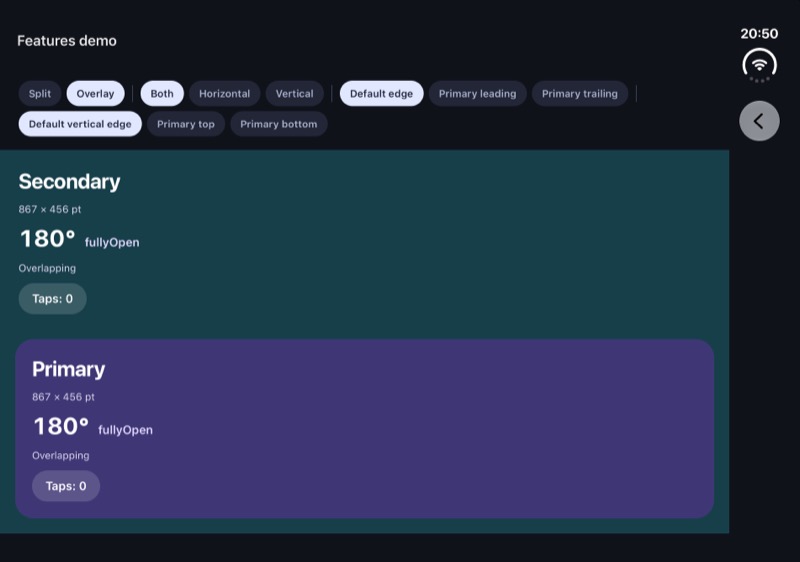
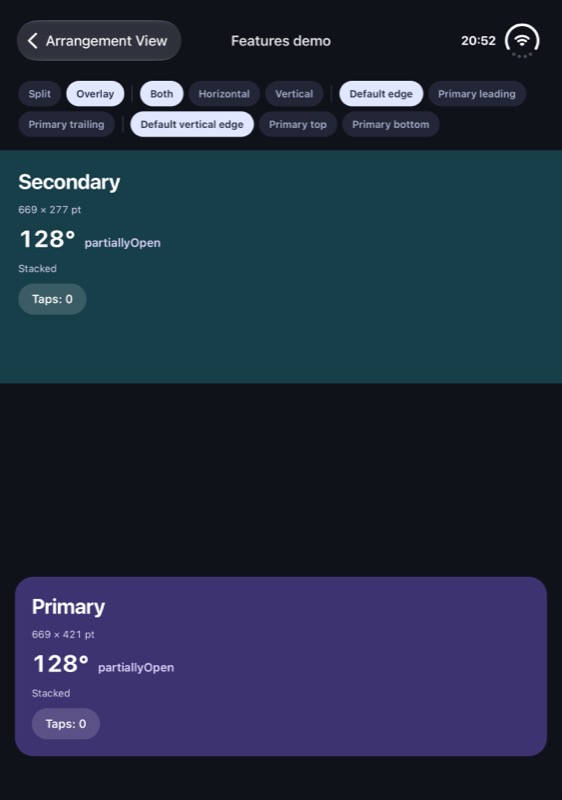
"split"shares the arrangement between the two panes, side by side or stacked, when the window has room for both, or the device unfolds and the hinge divides them. Otherwise the primary pane shows alone, and the secondary pane stays mounted but off screen."overlay"gives both panes the whole arrangement, with the primary in front, until the device unfolds. Then, the primary pane goes on thetrailingside (right screen, if not RTL), or below it (if on Tabletop posture), unlessprimaryEdgenames another side.
Use split for content that works alone or beside other content, such as a list and its details. Use overlay when the secondary pane is the main content and the primary floats on top, such as a video and its controls: see the Video player example.
 iOS
iOS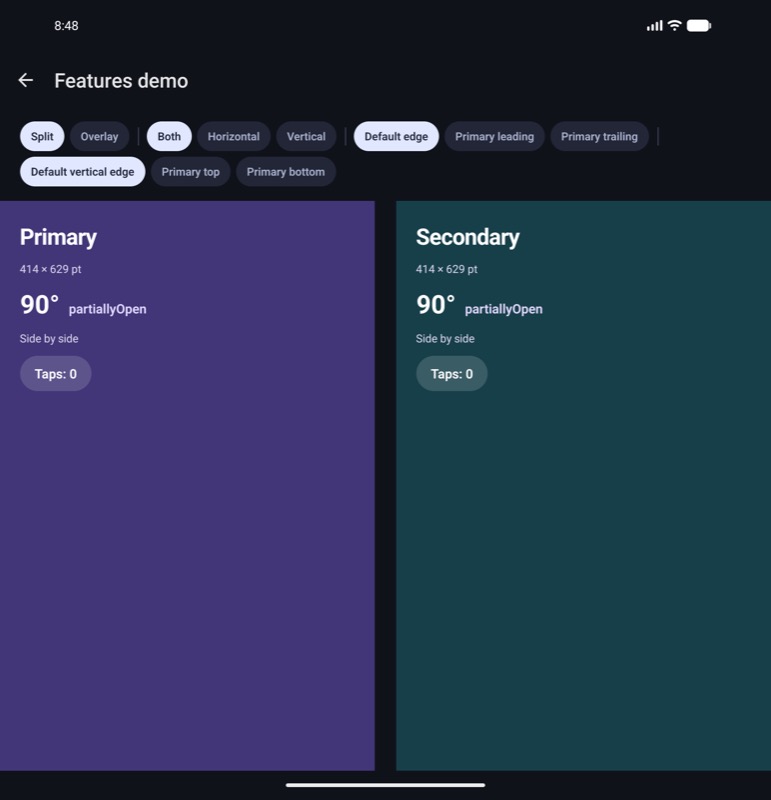 Android
 iOS
iOS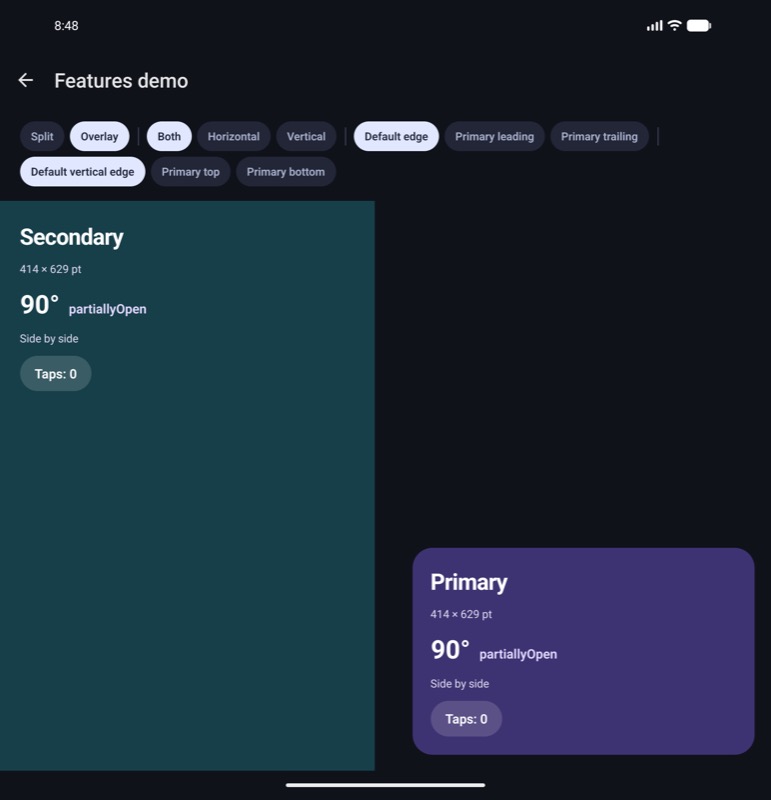 Android
 iOS
iOS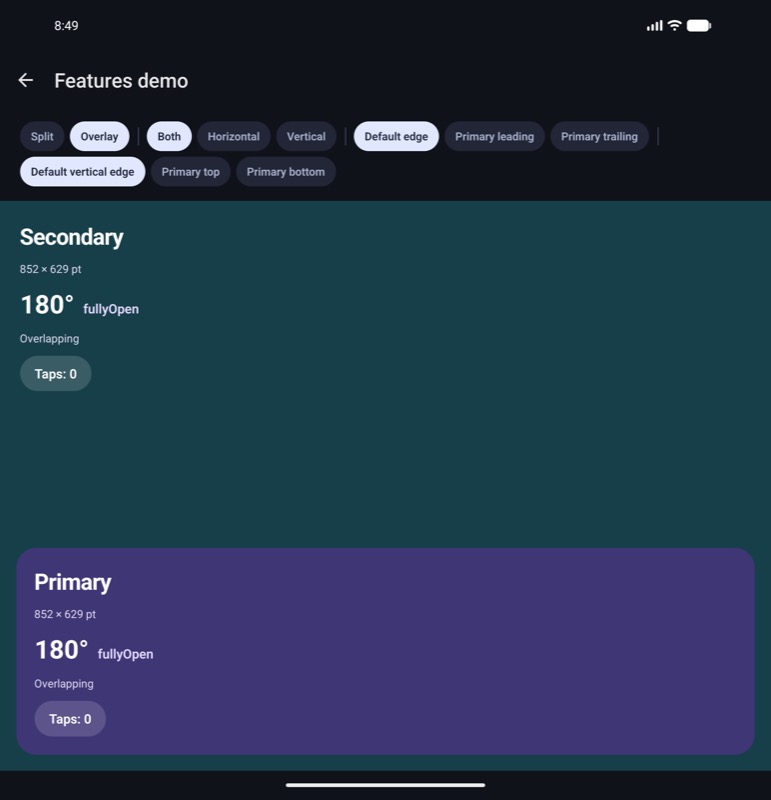 Android
The platform comparison shows both arrangements in every posture and orientation.
axes
"both" | "horizontal" | "vertical", default "both".
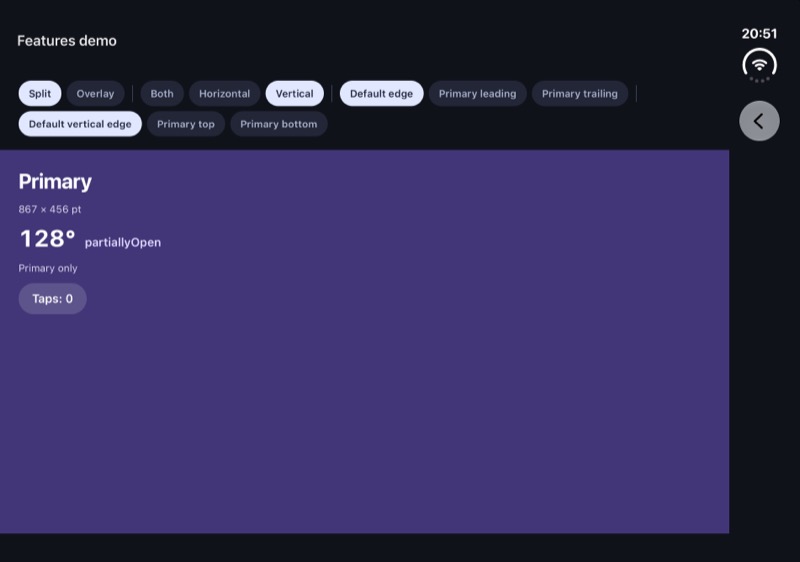
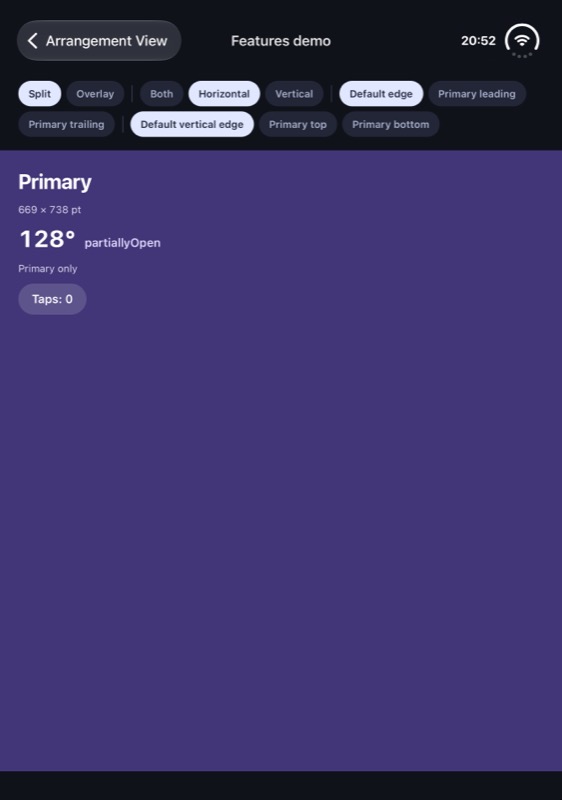
The directions in which the panes may be placed: "horizontal" is side by side, "vertical" is stacked. It applies to either arrangement.
If the posture calls for the other direction:
- A split shows the primary pane alone. On iOS it fills the screen, across the hinge. On Android it sits on one side of the hinge.
- An overlay stays as it is on a flat screen, with the primary in front of the secondary, across the hinge.
Use it when your content only works one way. A dashboard with a calendar beside it can pass "horizontal": in book posture the calendar sits beside the dashboard, and in tabletop the dashboard shows alone. A video player can pass "vertical": in book posture the video fills the screen, and in tabletop it moves above the hinge.
 iOS
iOS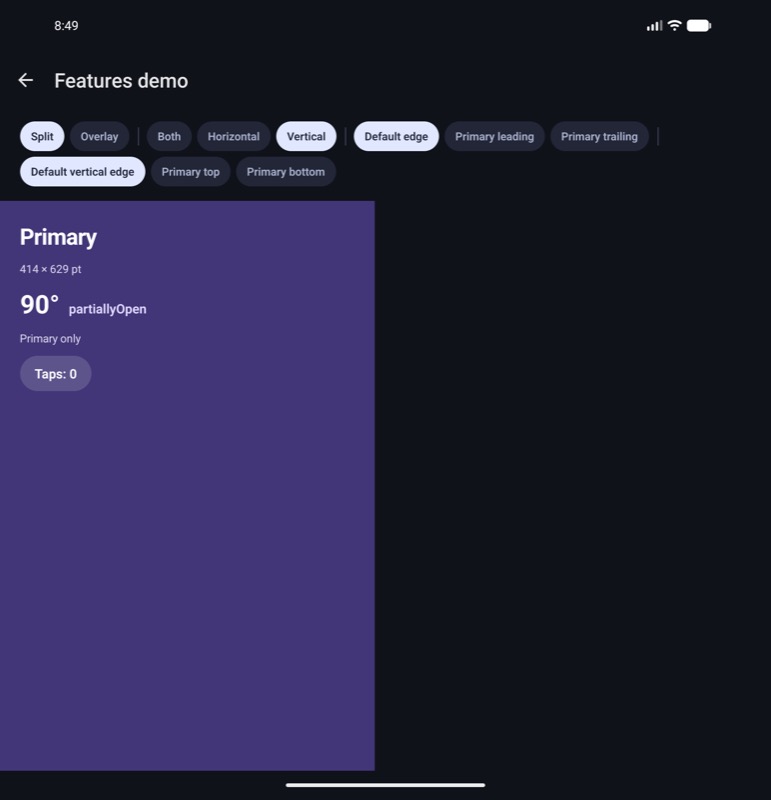 Android
 iOS
iOS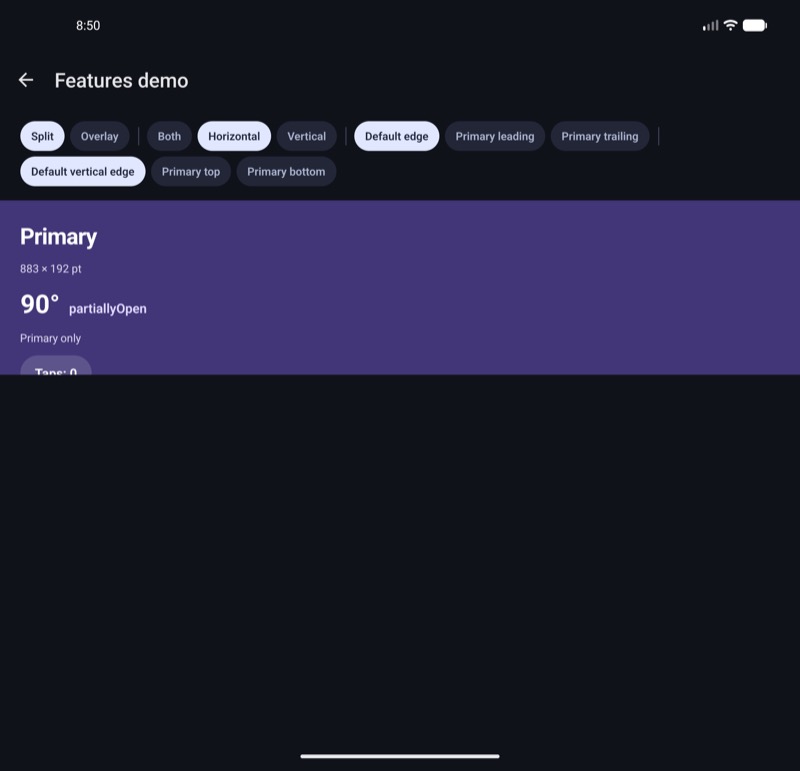 Android
primaryEdge
"leading" | "trailing" | "top" | "bottom" | ["leading" | "trailing", "top" | "bottom"], default none.
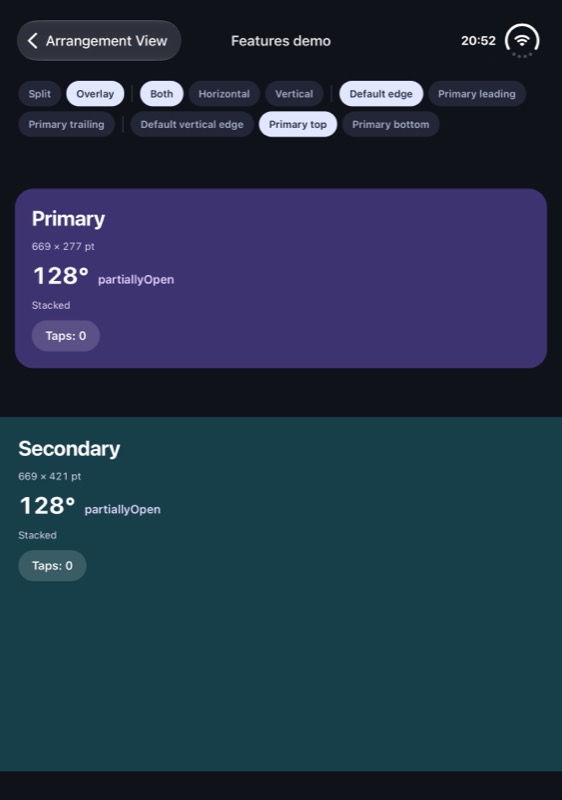
Use primaryEdge to force the primary pane to take a side when arranging.
Supply either a single value ("leading"), or an array (["leading", "top"]), in the [horizontal, vertical] order.
- Horizontal values:
"leading","trailing" - Vertical values:
"top","bottom"
By default, a split puts the primary pane on the leading side, and an overlay puts it on the trailing side, or below the hinge.
Stacked, a split's primary pane is always on top, so "top" and "bottom" only apply to overlays.
With "trailing", you can keep the primary pane (that is visible when the device is closed) in the same position on the inner display when unfolding the device.
Screen readers go through the panes in reading order, whichever is primary: with the primary pane on the trailing side, or below, the secondary pane is read first.
iOSAndroid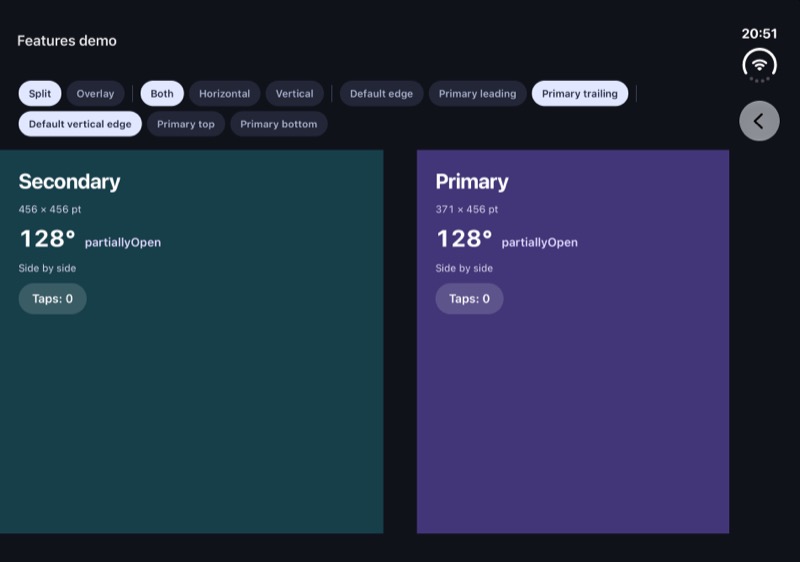 iOS
iOS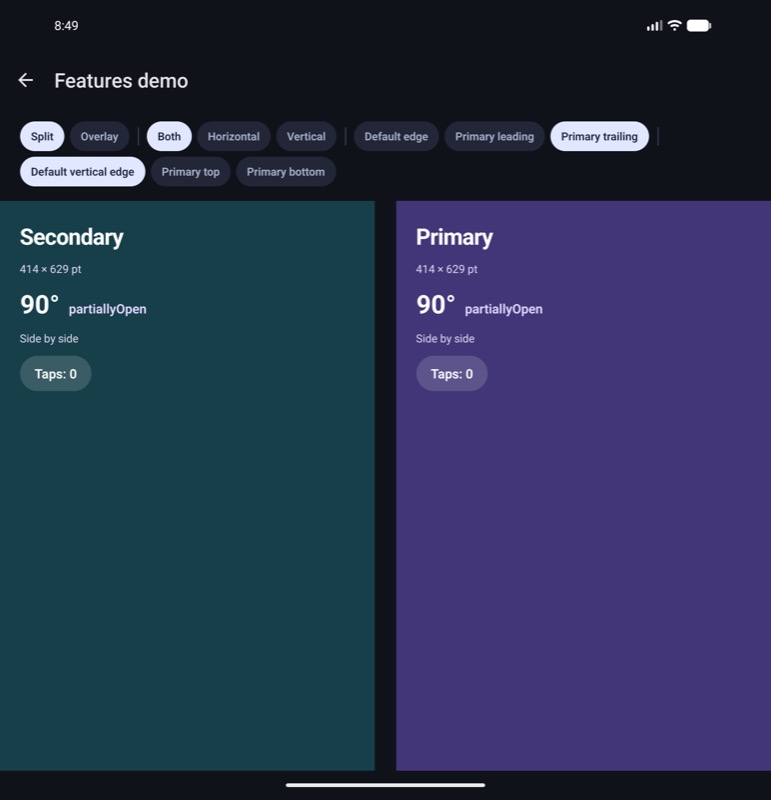 Android
 iOS
iOS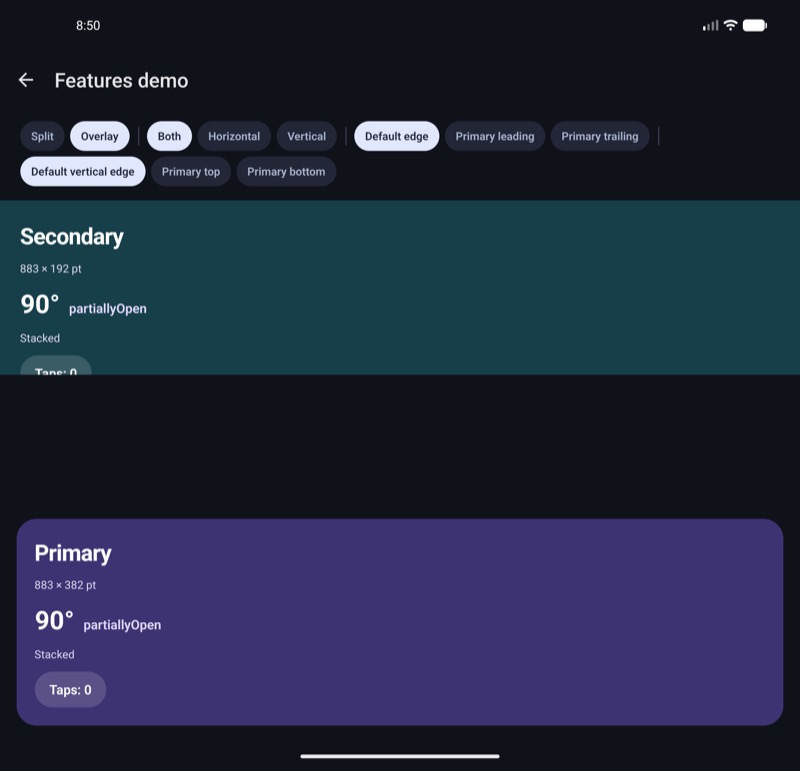 Android
 iOS
iOS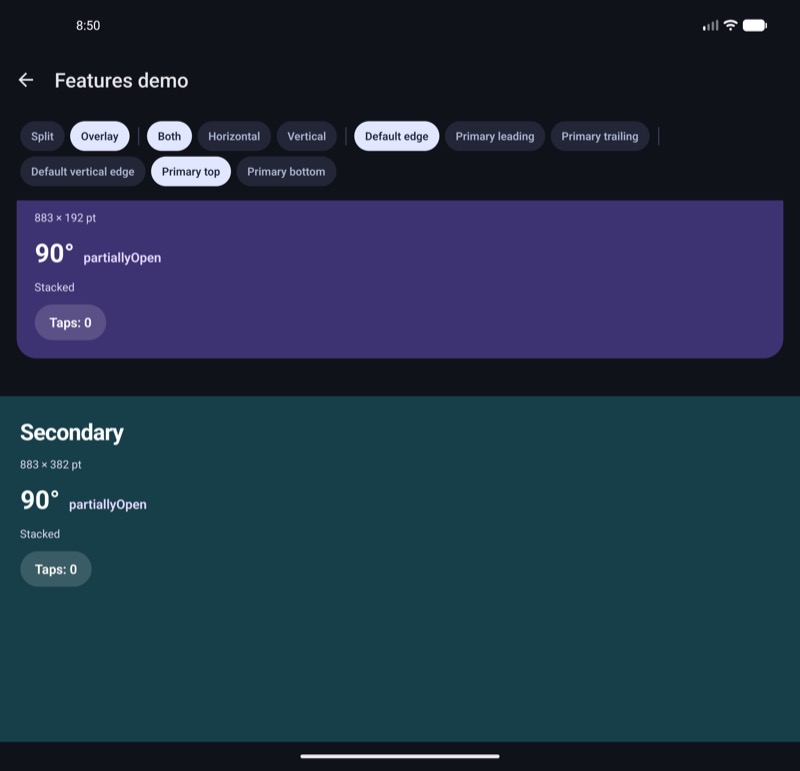 Android
See The primary pane's side for how each platform applies it.
onArrangementLayoutChange
(layout: ArrangementLayout) => void, default none.
Called with the ArrangementLayout once the panes are first laid out, and again whenever it changes: when the secondary pane comes on or off screen, or the panes change between side by side, stacked and overlapping.
Use it for UI outside the panes, such as a header button that opens the secondary pane's content in a sheet while that pane is off screen. Inside a pane, use useArrangementLayout instead.
hingePolicy Android only
"avoidSeparating" | "alwaysAvoid" | "neverAvoid", default "avoidSeparating". Android only, after Material's HingePolicy.
The rules for when to separate the panes on the hinge. The gap size is defined by hingeGap.
iOS has no equivalent: SwiftUI always avoids a half-open hinge, as "avoidSeparating" does, and never a flat one.
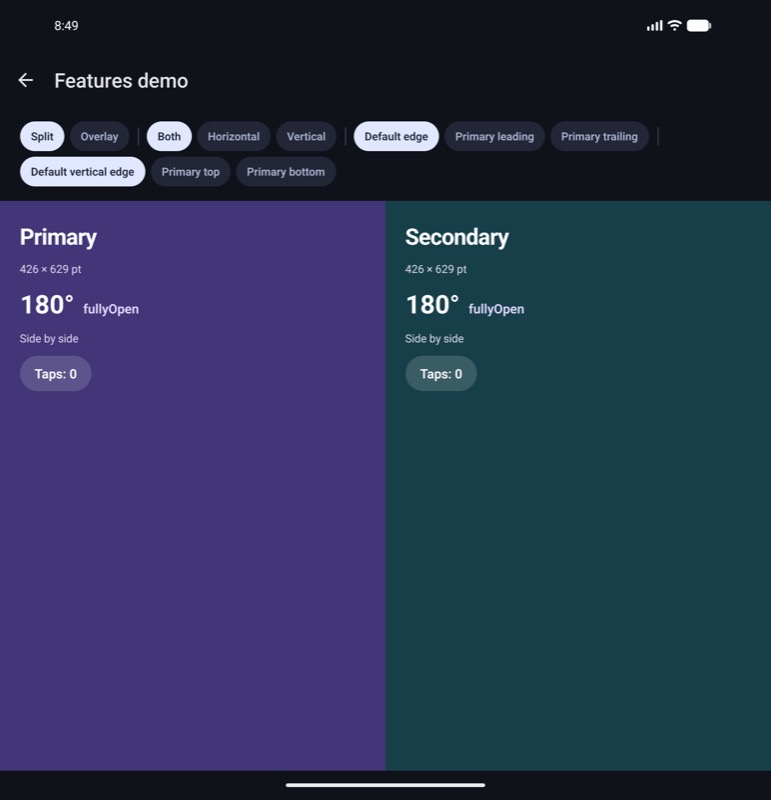
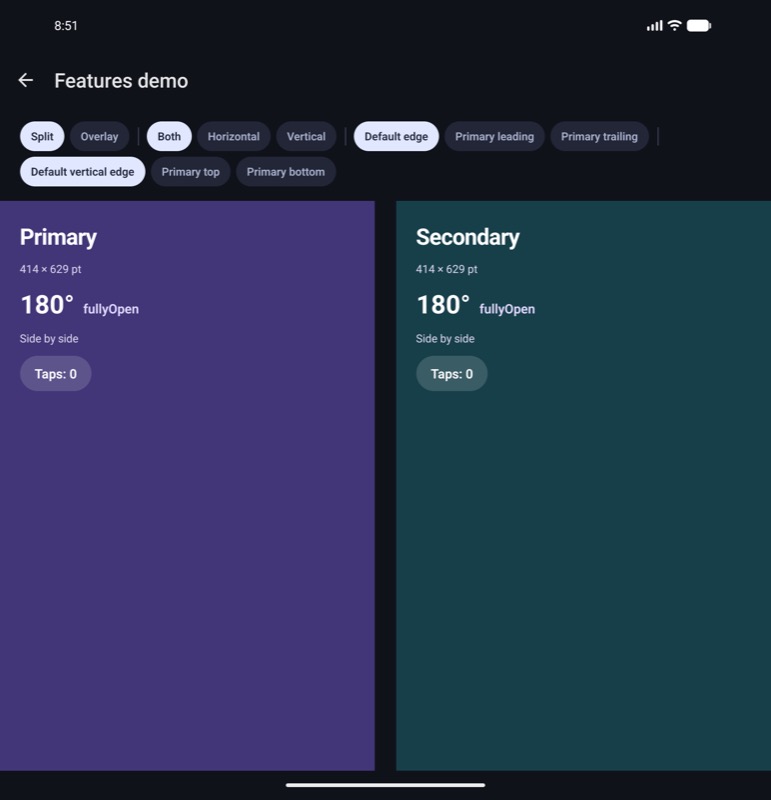
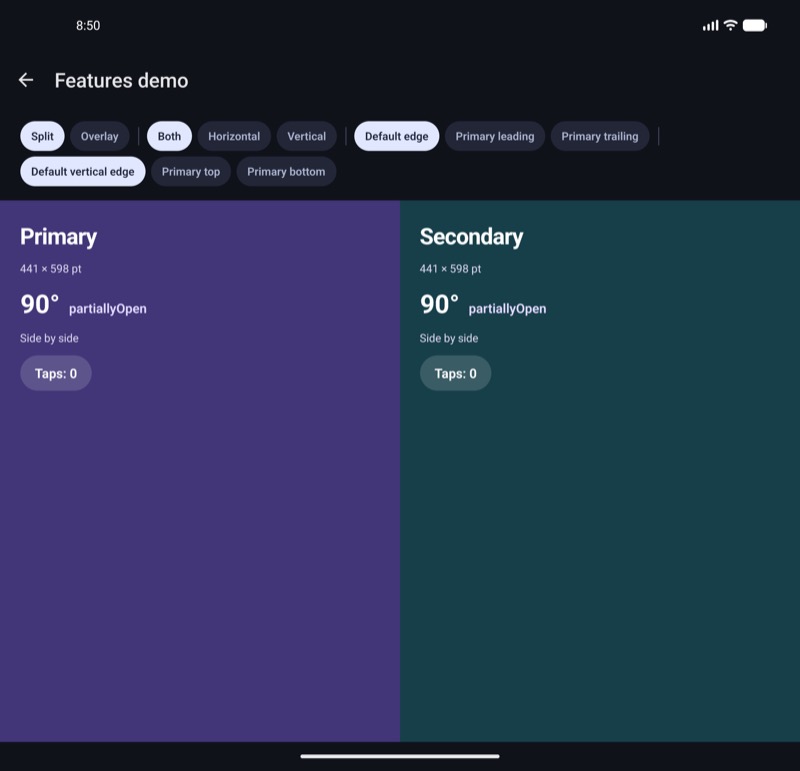
Below, "alwaysAvoid" opens a gap around the flat fold, and with "neverAvoid" in tabletop posture the inner display is wide enough for two columns, so the panes sit side by side across the hinge.
 Android
 Android
 Android
hingeGap Android only
number, default 24. Android only.
The space in dp between the panes around an avoided hinge, centred on the crease. A primary pane showing alone stays clear of the same space.
On a dual-screen device, the hinge between the two screens covers part of the window. If that hinge is wider than hingeGap, the gap takes the hinge's width instead, so no content goes under it. A foldable screen's hinge covers nothing, so 0 puts the panes right against the fold.
iOS keeps a fixed 20 pt clear on each side of the crease.
Android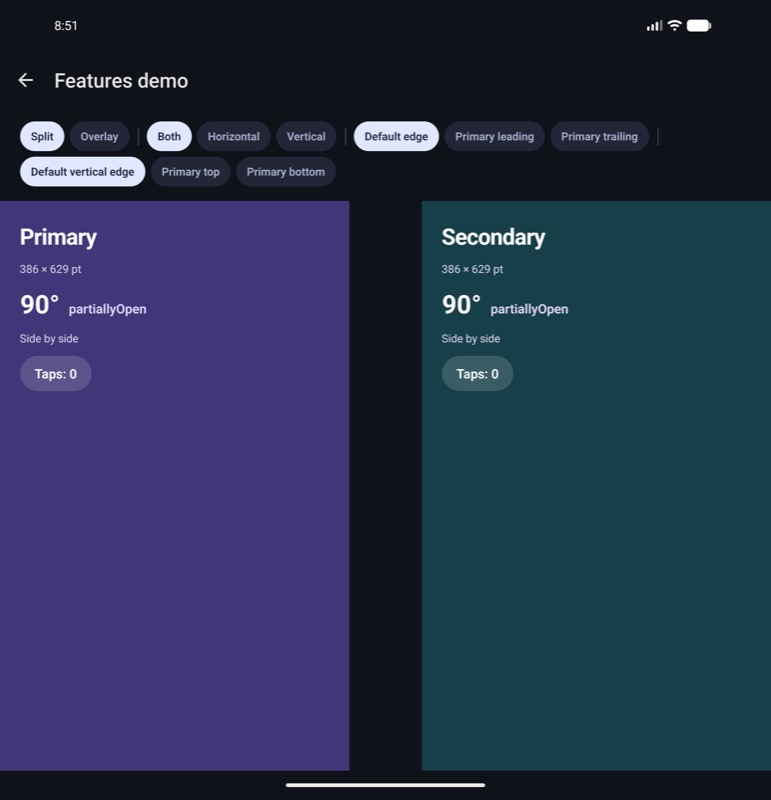 Android
ArrangementView.Primary / ArrangementView.Secondary
ArrangementView.Primary and ArrangementView.Secondary are slot markers: they render no view of their own and do not affect layout. Put your own pane component inside each one. Both must be direct children of ArrangementView, in either order.
Any other direct child is ignored, and a missing, duplicated, or unrecognized child logs a warning in development builds.
Give each pane's root flex: 1 to fill its assigned space.
Don't move content between ArrangementView.Primary and ArrangementView.Secondary based on the layout or the hinge: React remounts content that changes slots, losing its state.
Use primaryEdge to choose the primary pane's side, and useArrangementLayout to adapt content within a pane.
In overlay mode the primary is in front of the secondary. Use a transparent primary background and pointerEvents="box-none" on its full-size React wrapper for floating controls.