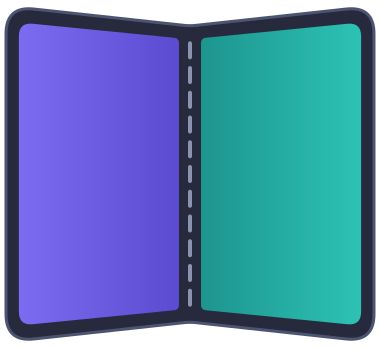
ArrangementView
The container component where you render your primary and secondary panes. It arranges them side by side or stacked, depending on the platform, device, and orientation.
Props
Give the arrangement a bounded size, usually flex: 1. The platform determines whether a split is appropriate.
The component adds no safe-area padding. Place it within the safe area supplied by your screen/navigation container, or handle insets in your content.
To adapt a pane's content to what the arrangement shows, such as whether the secondary pane is on screen, use useArrangementLayout inside a pane, or onArrangementLayoutChange outside the panes.
ArrangementView.Primary / ArrangementView.Secondary
ArrangementView.Primary and ArrangementView.Secondary are slot markers: they render no view of their own and do not affect layout. Put your own pane component inside each one. Both must be direct children of ArrangementView, in either order.
Any other direct child is ignored, and a missing, duplicated, or unrecognized child logs a warning in development builds.
Give each pane's root flex: 1 to fill its assigned space.
Don't move content between ArrangementView.Primary and ArrangementView.Secondary based on the layout or the hinge: React remounts content that changes slots, losing its state.
Use primaryEdge to choose the primary pane's side, and useArrangementLayout to adapt content within a pane.
In overlay mode the primary is in front of the secondary. Use a transparent primary background and pointerEvents="box-none" on its full-size React wrapper for floating controls.